Problem: Added in a content type to a list and it's not letting me delete it. Says content type in use.
Soln: Modify the view of the list and see which item is using the content type. (Check the 'content type' column to have it in the view.) Then change the content type to some other one (perhaps 'Document'). After all the items are changed to a different content type, you can then delete the one that says in use.
Thursday, April 30, 2009

Friday, April 3, 2009
Alerts setup findings
For users to see their own alerts on "My Settings", they must have at least READ access.
With READ access, they see the "alert me", but when they click on "alert me", it gives "access denied".
With anonymous access turned on, everyone can read. However, if user is not in read access category, user will NOT get the alert.
With READ access, they see the "alert me", but when they click on "alert me", it gives "access denied".
With anonymous access turned on, everyone can read. However, if user is not in read access category, user will NOT get the alert.
Tuesday, March 24, 2009
Generate Unique ID for InfoPath form
We are going to generate a Unique ID for each InfoPath form using a SharePoint list. We will then use this ID as the unique filename.
1. Create a SharePoint list with a key column:

2. Each time we load the InfoPath form, we will grab the key and then increment the key by 1:
XPathNavigator xNav = MainDataSource.CreateNavigator();
XPathNavigator nodeTermid = xNav.SelectSingleNode("my:myFields/my:TermID",
NamespaceManager);
if (nodeTermid.InnerXml == "0")
{
string termid = getTermID();
nodeTermid.SetValue(termid);
….
}
private string getTermID()
{
string termSite = ConfigurationManager.AppSettings["url_termsite"].ToString();
string termIDListName = ConfigurationManager.AppSettings["list_termid"].ToString();
string termIDKey = string.Empty;
SPSite mysite = null;
SPWeb site = null;
try
{
mysite = new SPSite(termSite);
site = mysite.RootWeb;
site.AllowUnsafeUpdates = true;
SPList list = site.Lists[termIDListName];
SPQuery query = new SPQuery();
string queryText = "<Where><Eq><FieldRef Name='{0}'" +
"/><Value Type='Text'>{1}</Value></Eq></Where>";
queryText = string.Format(queryText, "Title", "termid");
query.Query = queryText;
SPListItemCollection results = list.GetItems(query);
foreach (SPListItem item in results)
{
termIDKey = item["key"].ToString();
}
int newID = Convert.ToInt32(termIDKey) + 1;
UpdateFieldValues(termIDListName, "key", newID.ToString(), "Title", "termid");
return termIDKey;
}
catch (Exception ex)
{
throw ex;
}
finally
{
if (mysite != null) mysite.Dispose();
if (site != null) site.Dispose();
}
}
public static void UpdateFieldValues(string listName, string attribute, string attrValue,
string filterField, string filterValue)
{
SPSite mysite = null;
SPWeb site = null;
try
{
mysite = new SPSite(ConfigurationManager.AppSettings["url_termsite"].ToString());
site = mysite.RootWeb;
site.AllowUnsafeUpdates = true;
SPList list = site.Lists[listName];
SPQuery query = new SPQuery();
string queryText = "<Where><Eq><FieldRef Name='{0}'" +
"/><Value Type='Text'>{1}</Value></Eq></Where>";
queryText = string.Format(queryText, filterField, filterValue);
query.Query = queryText;
SPListItemCollection results = list.GetItems(query);
foreach (SPListItem item in results)
{
item[attribute] = attrValue;
item.UpdateOverwriteVersion();
}
}
catch (Exception ex)
{
throw ex;
}
finally
{
if (mysite != null) mysite.Dispose();
if (site != null) site.Dispose();
}
}
1. Create a SharePoint list with a key column:

2. Each time we load the InfoPath form, we will grab the key and then increment the key by 1:
XPathNavigator xNav = MainDataSource.CreateNavigator();
XPathNavigator nodeTermid = xNav.SelectSingleNode("my:myFields/my:TermID",
NamespaceManager);
if (nodeTermid.InnerXml == "0")
{
string termid = getTermID();
nodeTermid.SetValue(termid);
….
}
private string getTermID()
{
string termSite = ConfigurationManager.AppSettings["url_termsite"].ToString();
string termIDListName = ConfigurationManager.AppSettings["list_termid"].ToString();
string termIDKey = string.Empty;
SPSite mysite = null;
SPWeb site = null;
try
{
mysite = new SPSite(termSite);
site = mysite.RootWeb;
site.AllowUnsafeUpdates = true;
SPList list = site.Lists[termIDListName];
SPQuery query = new SPQuery();
string queryText = "<Where><Eq><FieldRef Name='{0}'" +
"/><Value Type='Text'>{1}</Value></Eq></Where>";
queryText = string.Format(queryText, "Title", "termid");
query.Query = queryText;
SPListItemCollection results = list.GetItems(query);
foreach (SPListItem item in results)
{
termIDKey = item["key"].ToString();
}
int newID = Convert.ToInt32(termIDKey) + 1;
UpdateFieldValues(termIDListName, "key", newID.ToString(), "Title", "termid");
return termIDKey;
}
catch (Exception ex)
{
throw ex;
}
finally
{
if (mysite != null) mysite.Dispose();
if (site != null) site.Dispose();
}
}
public static void UpdateFieldValues(string listName, string attribute, string attrValue,
string filterField, string filterValue)
{
SPSite mysite = null;
SPWeb site = null;
try
{
mysite = new SPSite(ConfigurationManager.AppSettings["url_termsite"].ToString());
site = mysite.RootWeb;
site.AllowUnsafeUpdates = true;
SPList list = site.Lists[listName];
SPQuery query = new SPQuery();
string queryText = "<Where><Eq><FieldRef Name='{0}'" +
"/><Value Type='Text'>{1}</Value></Eq></Where>";
queryText = string.Format(queryText, filterField, filterValue);
query.Query = queryText;
SPListItemCollection results = list.GetItems(query);
foreach (SPListItem item in results)
{
item[attribute] = attrValue;
item.UpdateOverwriteVersion();
}
}
catch (Exception ex)
{
throw ex;
}
finally
{
if (mysite != null) mysite.Dispose();
if (site != null) site.Dispose();
}
}
Tuesday, February 10, 2009
Outlook 2007 not rendering external/internet images
Ran into this problem when working on Alerts for blog sites. The alert renders images that are stored in the intranet, but not from internet sites.
Solution: As suspected, it was my Outlook 2007 settings. To fix, go to Tools -> Trust Center


UNCHECK the "Don't download pictures automatically in HTML e-mail messages or RSS Items"
Solution: As suspected, it was my Outlook 2007 settings. To fix, go to Tools -> Trust Center


UNCHECK the "Don't download pictures automatically in HTML e-mail messages or RSS Items"
Switching application pools, site not rendering correctly
This is an easy one, but might take some people sometime to figure out.
Problem: The admin run into an problem today when switching an application pool for a site. The site was not rendered correctly once switched to the new application pool and with the old one stopped. Upon taking a look, all the images were not showing.
Solution: Make sure the 'images', along with all other applications (virtural directories) are using the same app pool. In this case, the new app pool.
Problem: The admin run into an problem today when switching an application pool for a site. The site was not rendered correctly once switched to the new application pool and with the old one stopped. Upon taking a look, all the images were not showing.
Solution: Make sure the 'images', along with all other applications (virtural directories) are using the same app pool. In this case, the new app pool.
Thursday, February 5, 2009
Don't see the style library in the newly created team site


Friday, December 5, 2008
"Cannot evaluate expression because the code of the current method is optimized"
While trying to debug, came across this error on items on the watch list: "Cannot evaluate expression because the code of the current method is optimized". Non of the parameters can be 'watched'.
Steps to resolve:
1. Check if the code is really optimized on Project Properties. Also check if debug mode is 'Release'. If those checks are done and still get the same message, go to step 2.
2. Check the config mgr (drop down on the menu somewhere in the center). make sure it says 'debug' and not 'release'.
Steps to resolve:
1. Check if the code is really optimized on Project Properties. Also check if debug mode is 'Release'. If those checks are done and still get the same message, go to step 2.
2. Check the config mgr (drop down on the menu somewhere in the center). make sure it says 'debug' and not 'release'.
Tuesday, November 4, 2008
Filter between two dates (date range) with the Data view Webpart
To filter a date range in sharepoint:
1. What you need on a page:
2. Open the page w/ SPD, convert the list to be filtered to DataView (Convert to DataView will give you a lot more columns to choose in the DataView’s Filter critiera, as oppose to going to Insert->Sharepoint Controls->DataView. However, you will still not see a ‘[StartDate]’ and ‘[EndDate]’ when you go to Filter on the DataView's 'Common Date View Tasks'.
3. Now it's time to create the 'StartDate' and 'EndDate' parameters:
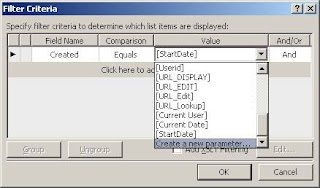
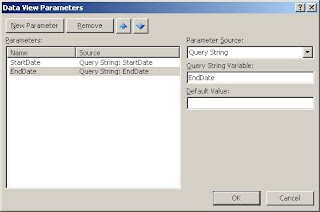
Under the DataView's 'Common Date View Tasks', choose Filter, click on the 'Click here to add a phase', scroll down and click on 'Create a new parameter'
4. Now we are ready to configure the filter for the Date View:
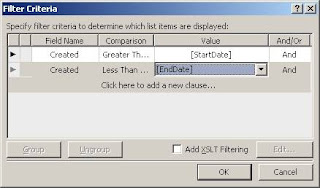
5. In the code view, you should see the newly added parameters:
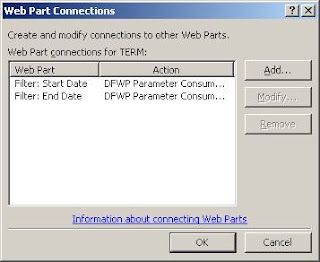
6. Now we need to setup the connections from the DataView so it knows where to get the data for the parameters. Click on the little arrow for ‘Common Dataview tasks’, go to webpart connections (Note: makes sure you choose the ‘Get Parameters From’)
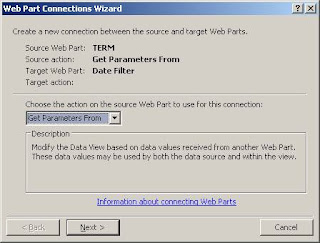
When done going through the Web part Connections Wizard, you should see something like this:
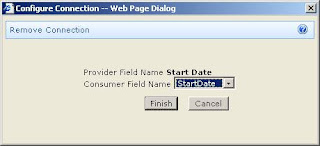
7. Almost done. Now go to the browser and edit page. Click on the date filters to connect the webparts. The Data needs to know where to get the filter values. Even though the connections were setup from the DataView, you still have to setup the filter fields from the Date Filters. Note the consumer field name is the parameter we setup earlier. Do the same for each date filter, one for the 'StartDate' parameter, one for the 'EndDate' parameter.
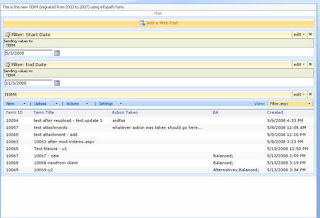
8. Done. Final result could be something like this:
1. What you need on a page:
a. 2 Date Filter webparts
b. 1 list to be filtered
2. Open the page w/ SPD, convert the list to be filtered to DataView (Convert to DataView will give you a lot more columns to choose in the DataView’s Filter critiera, as oppose to going to Insert->Sharepoint Controls->DataView. However, you will still not see a ‘[StartDate]’ and ‘[EndDate]’ when you go to Filter on the DataView's 'Common Date View Tasks'.
3. Now it's time to create the 'StartDate' and 'EndDate' parameters:
Under the DataView's 'Common Date View Tasks', choose Filter, click on the 'Click here to add a phase', scroll down and click on 'Create a new parameter'


4. Now we are ready to configure the filter for the Date View:

5. In the code view, you should see the newly added parameters:
<ParameterBinding Name="StartDate" Location="QueryString(StartDate)" DefaultValue=""/>
<ParameterBinding Name="EndDate" Location="QueryString(EndDate)" DefaultValue=""/>
6. Now we need to setup the connections from the DataView so it knows where to get the data for the parameters. Click on the little arrow for ‘Common Dataview tasks’, go to webpart connections (Note: makes sure you choose the ‘Get Parameters From’)

When done going through the Web part Connections Wizard, you should see something like this:

7. Almost done. Now go to the browser and edit page. Click on the date filters to connect the webparts. The Data needs to know where to get the filter values. Even though the connections were setup from the DataView, you still have to setup the filter fields from the Date Filters. Note the consumer field name is the parameter we setup earlier. Do the same for each date filter, one for the 'StartDate' parameter, one for the 'EndDate' parameter.

8. Done. Final result could be something like this:

Tuesday, October 28, 2008
Cannot find wss feature.xml snippet...
To get the snippet for wss workflows:
Using the Code Snippet Manager (if not seen, Ctrl-K, B or Tools -> Customize -> Commands, Tools, drag the Code Snippet Manager to the Tools menu), add c:\program files\microsoft visual studio 8\xml\1033\snippets\Windows SharepointServices Workflow to get the deployment xmls for the workflow (feature.xml, workflow.xml etc).
Using the Code Snippet Manager (if not seen, Ctrl-K, B or Tools -> Customize -> Commands, Tools, drag the Code Snippet Manager to the Tools menu), add c:\program files\microsoft visual studio 8\xml\1033\snippets\Windows SharepointServices Workflow to get the deployment xmls for the workflow (feature.xml, workflow.xml etc).
Monday, October 27, 2008
SmartPart: could not load
Problem: After adding a SmartPart on a webpart page, go to select a user control in the dropdwn of the tool pane, some user controls show 'Could not load '.
Soln: Select the user control anyway and click 'Apply', this would provided a detailed error message as to what's wrong. If there is a missing assembly reference (if the UC references it, but missing from web.config etc), then add the assembly reference to the web.config.
Soln: Select the user control anyway and click 'Apply', this would provided a detailed error message as to what's wrong. If there is a missing assembly reference (if the UC references it, but missing from web.config etc), then add the assembly reference to the web.config.
Subscribe to:
Posts (Atom)